


Welcome to your Video Banking Appointment
Please sign in and have your ID and/or documentation ready. If you are an existing member, please have your member number ready as well.
Success!
You've been successfully checked in to your appointment. A member of our team will contact you in a few minutes to begin your appointment. In the meantime, feel free to browse our site.
What You Need:
- Valid ID
Member Number
- How do I find my Member Number?
To locate your Member Number, log into Online Banking, click an account and then click Account Details. On the Mobile App, select an account and then select Show Details. Your Member Number is the final 6 or 7 digits of the 14-digit MICR Account Number. For example, if your 14-digit MICR Account Number is 10170000123456, your Member Number is 123456.
Before Your Video Appointment:
- Clear cache and cookies from your browser (see instructions in the FAQs below).
- Join from a desktop or mobile device.
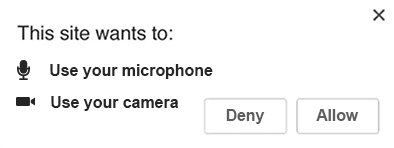
- When prompted (see screenshot below), please Allow to use both microphone and camera on your device. Note: You must allow microphone and camera to proceed with your appointment.
Frequently Asked Questions
Return to your appointment page, and your agent will invite you back into the video call.
- Go to your Chrome settings (the 3 dots on the righthand side of the browser.)
- Click Settings.
- Click Privacy and security.
- Click Site settings.
- Scroll down to Camera and Microphone under Permissions.
- Click Camera and/or Microphone to select "Sites can ask to use your camera."
Yes. On the left side of the engagement window, you will see a four-way arrow. Use that to drag the window around on your screen.
It is ideal that you use the most up-to-date versions of Chrome, Firefox or Safari.
Occasionally, our video appointment scripts are blocked by extensions meant to block ads, such as Adblock. If this should happen, disable the extension on a specific site and reload the page. Click here for instructions on how to disable or enable your pop-up blocker.