How to Set Up External Transfers on Digital Banking
In a few clicks, you can easily link your account at another financial institution to your Apple Federal Credit Union account.

Fill Your Holidays with Charity and Cheer

 Branches
 Schedule Appointment
 Make a Payment
 Contact Us
 Rates
Rates

In a few clicks, you can easily link your account at another financial institution to your Apple Federal Credit Union account.
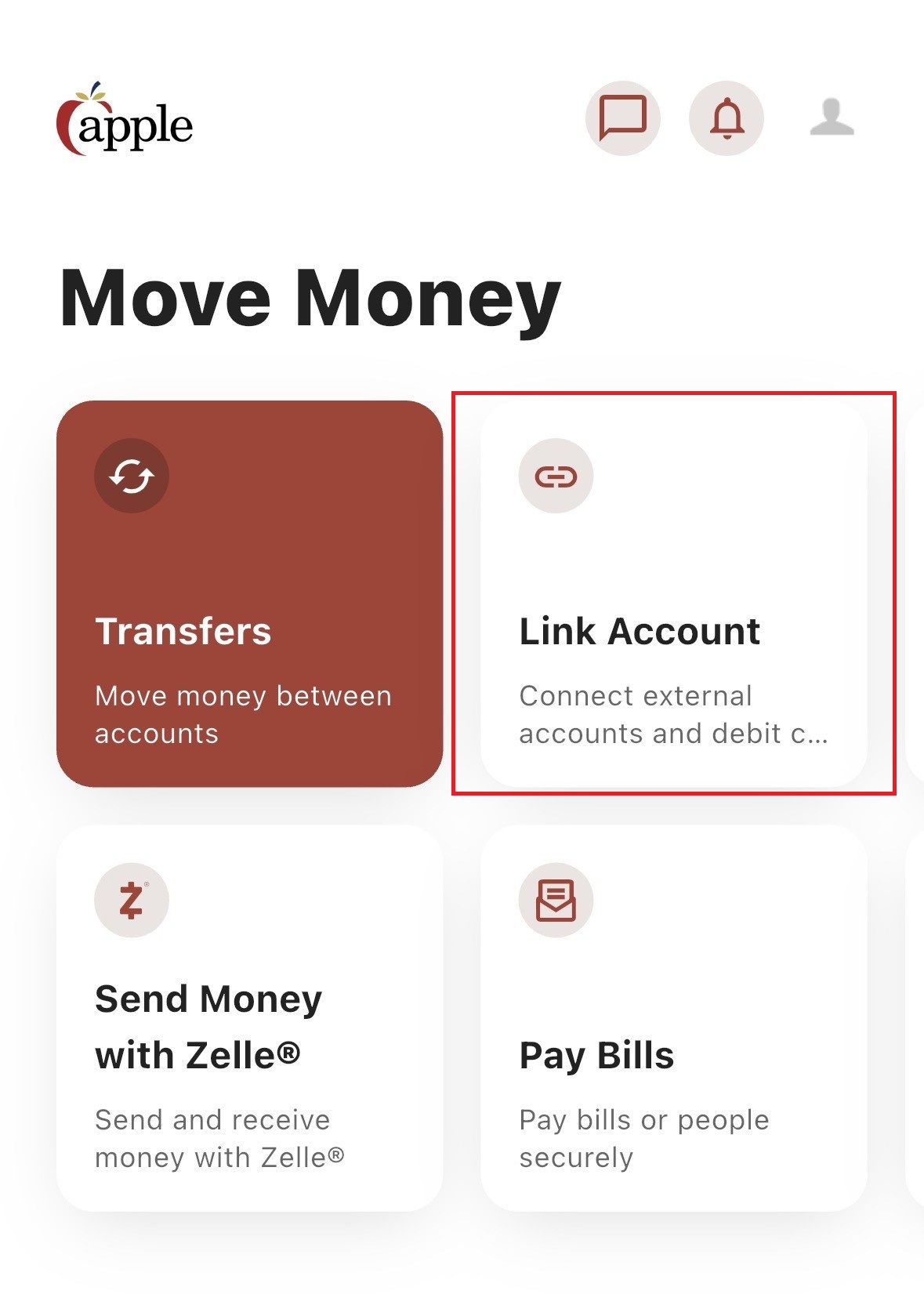
We have a fast and easy route to connect your external accounts via our Mobile App.
1. Select the Move Money tab.
2. Select Link Account.

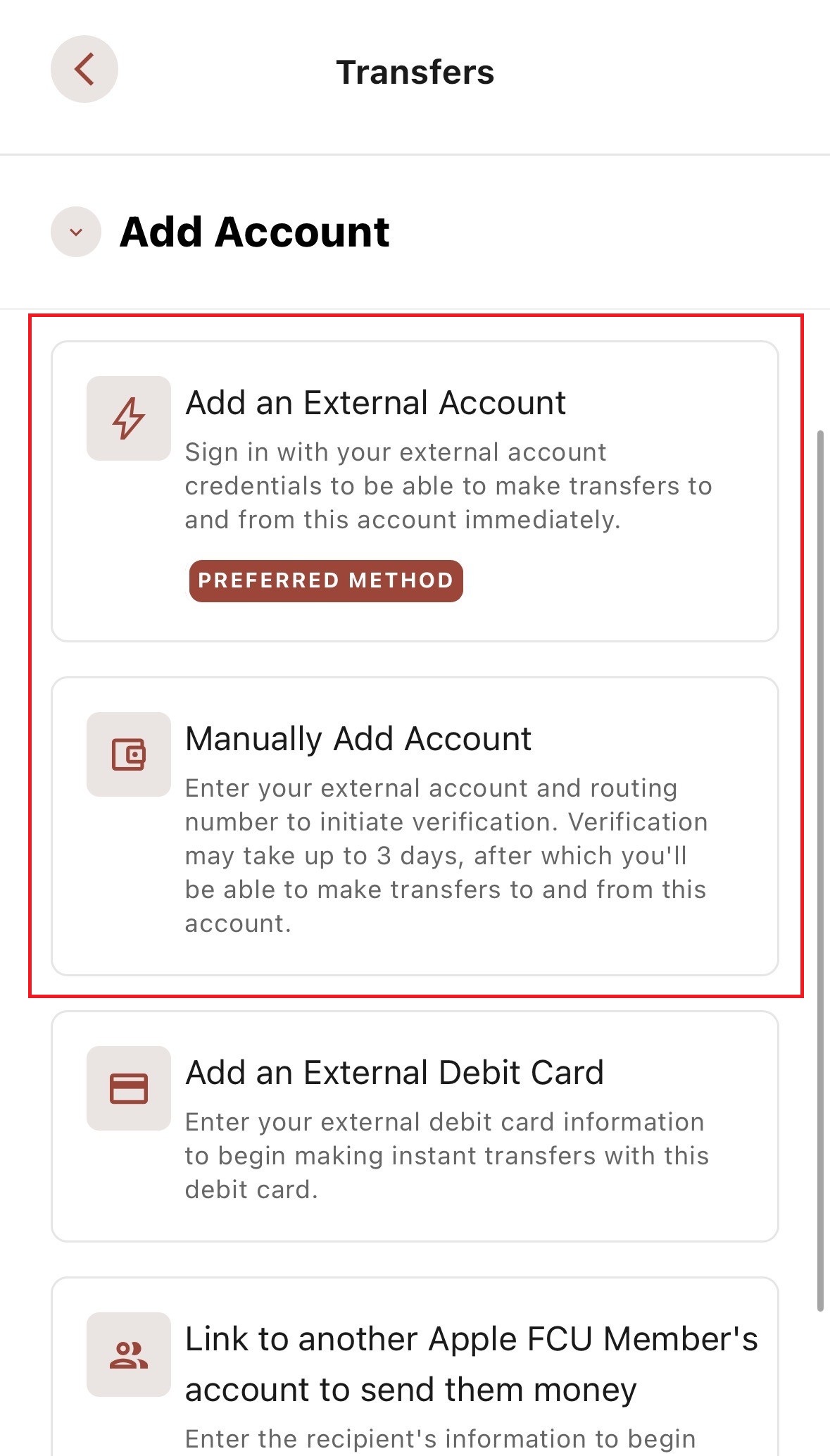
3. Select Add an External Account or Manually Add Account.
4. Select your financial institution and securely log in.
5. Once your account has successfully connected, follow the prompts to complete your transfer.
If you’re completing a transfer via Online Banking, follow these steps to connect your external account
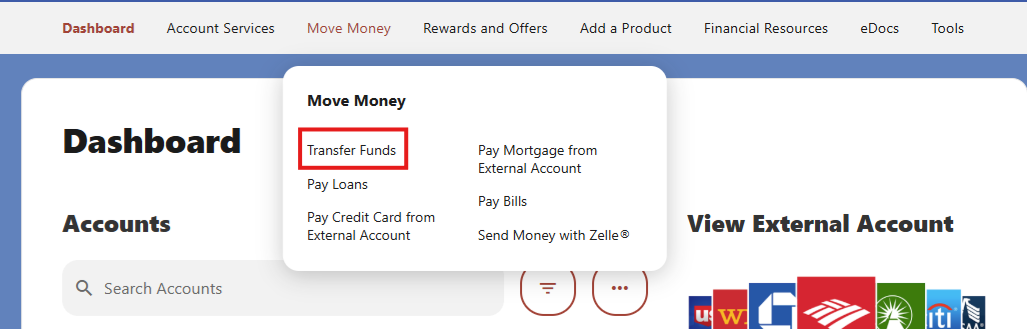
1. Select the Move Money tab.
2. Select Transfer Funds.
3. Select More Actions.
4. Select Add Account and select Add an External Account or Manually Add Account.

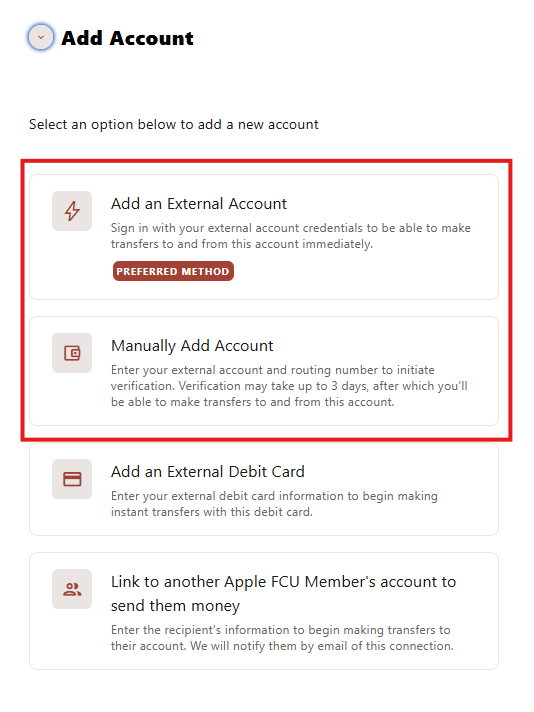
5. Follow the onscreen prompts.
6. You must review your external account to confirm that the trial deposit was processed. To verify these transactions, login to Online Banking, select Tools, then Accounts, Manage Accounts, then Confirm Payee.
7. Upon verification, your external account will become active, and you may schedule future transfers.